> ## Documentation Index
> Fetch the complete documentation index at: https://docs.definite.app/llms.txt
> Use this file to discover all available pages before exploring further.
# Filters
> Use prominent filters to let viewers slice data across all tiles in a Doc.
Users need the **Admin** [role](/workspace) to create and edit filters. Analysts can use existing filters but cannot modify them.
Prominent filters appear in the top toolbar and apply to all tiles in your Doc at once. They let viewers slice data by custom dimensions like region, industry, product, etc.
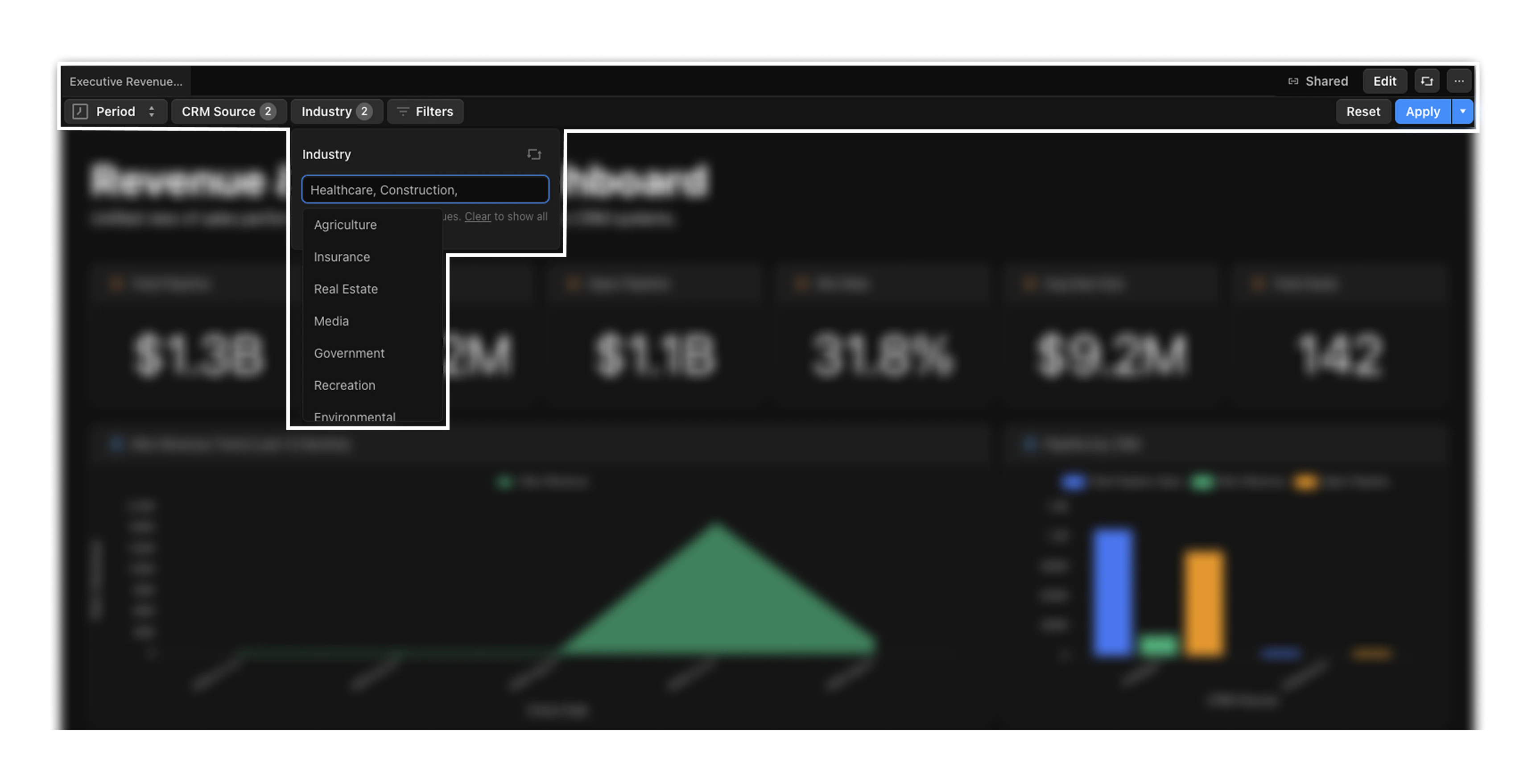 ## Creating prominent filters
You can add prominent filters in two ways:
### Using Fi
Ask Fi to add filters to your Doc:
* "Add a prominent filter for industry"
* "Add a filter for region to the toolbar"
* "Create filters for CRM source and stage name"
Fi adds the appropriate YAML configuration automatically.
### Manually via YAML
1. Click the ⋯ menu in the top toolbar
2. Select **View YAML**
3. Add a `filters` section after `metadata` and before `datasets`:
```yaml theme={null}
version: 1
schemaVersion: "2025-01"
kind: dashboard
metadata:
name: "Your Dashboard Name"
description: "Your dashboard description"
# Filters appear between metadata and datasets
filters:
- id: region_filter # Unique identifier
label: Region # Display name in toolbar
target:
dimension: orders.region # Format: cube_name.dimension_name
operator: equals # Options: equals, notEquals, contains, notContains
display: prominent # Shows filter in toolbar (remove to hide)
values: # Optional: preset values
- North America
- Europe
- Asia Pacific
- id: product_filter
label: Product
target:
dimension: orders.product_name
operator: equals
display: prominent
values:
- Pro Plan
- Enterprise Plan
datasets:
my_dataset:
engine: cube
...
```
Each filter requires:
| Property | Description | Example |
| ------------------ | --------------------------------------- | ----------------------------- |
| `id` | Unique identifier for the filter | `region_filter` |
| `label` | Display name shown in the toolbar | `Region` |
| `target.dimension` | The cube and dimension to filter | `orders.region` |
| `operator` | Filter operation | `equals` |
| `display` | Set to `prominent` to show in toolbar | `prominent` |
| `values` | (Optional) Preset values for the filter | `["North America", "Europe"]` |
## Using prominent filters
1. Click a filter in the toolbar (e.g., "Industry", "Region", "Source")
2. Select one or more values from the dropdown
3. Click **Apply** to see your filtered data
## Local vs. saved filters
When you apply a filter, you have two options:
| Action | Who sees it | Persistence | Use case |
| --------------------- | ----------- | ------------------------------------ | -------------------------------------------- |
| **Apply** | Only you | Temporary (resets on page reload) | Exploring data on your own |
| **Save for everyone** | All users | Permanent (becomes the default view) | Setting the default filter state for the Doc |
To save filters for everyone, click the dropdown arrow next to the **Apply** button and select **Save for everyone**.
## Creating prominent filters
You can add prominent filters in two ways:
### Using Fi
Ask Fi to add filters to your Doc:
* "Add a prominent filter for industry"
* "Add a filter for region to the toolbar"
* "Create filters for CRM source and stage name"
Fi adds the appropriate YAML configuration automatically.
### Manually via YAML
1. Click the ⋯ menu in the top toolbar
2. Select **View YAML**
3. Add a `filters` section after `metadata` and before `datasets`:
```yaml theme={null}
version: 1
schemaVersion: "2025-01"
kind: dashboard
metadata:
name: "Your Dashboard Name"
description: "Your dashboard description"
# Filters appear between metadata and datasets
filters:
- id: region_filter # Unique identifier
label: Region # Display name in toolbar
target:
dimension: orders.region # Format: cube_name.dimension_name
operator: equals # Options: equals, notEquals, contains, notContains
display: prominent # Shows filter in toolbar (remove to hide)
values: # Optional: preset values
- North America
- Europe
- Asia Pacific
- id: product_filter
label: Product
target:
dimension: orders.product_name
operator: equals
display: prominent
values:
- Pro Plan
- Enterprise Plan
datasets:
my_dataset:
engine: cube
...
```
Each filter requires:
| Property | Description | Example |
| ------------------ | --------------------------------------- | ----------------------------- |
| `id` | Unique identifier for the filter | `region_filter` |
| `label` | Display name shown in the toolbar | `Region` |
| `target.dimension` | The cube and dimension to filter | `orders.region` |
| `operator` | Filter operation | `equals` |
| `display` | Set to `prominent` to show in toolbar | `prominent` |
| `values` | (Optional) Preset values for the filter | `["North America", "Europe"]` |
## Using prominent filters
1. Click a filter in the toolbar (e.g., "Industry", "Region", "Source")
2. Select one or more values from the dropdown
3. Click **Apply** to see your filtered data
## Local vs. saved filters
When you apply a filter, you have two options:
| Action | Who sees it | Persistence | Use case |
| --------------------- | ----------- | ------------------------------------ | -------------------------------------------- |
| **Apply** | Only you | Temporary (resets on page reload) | Exploring data on your own |
| **Save for everyone** | All users | Permanent (becomes the default view) | Setting the default filter state for the Doc |
To save filters for everyone, click the dropdown arrow next to the **Apply** button and select **Save for everyone**.
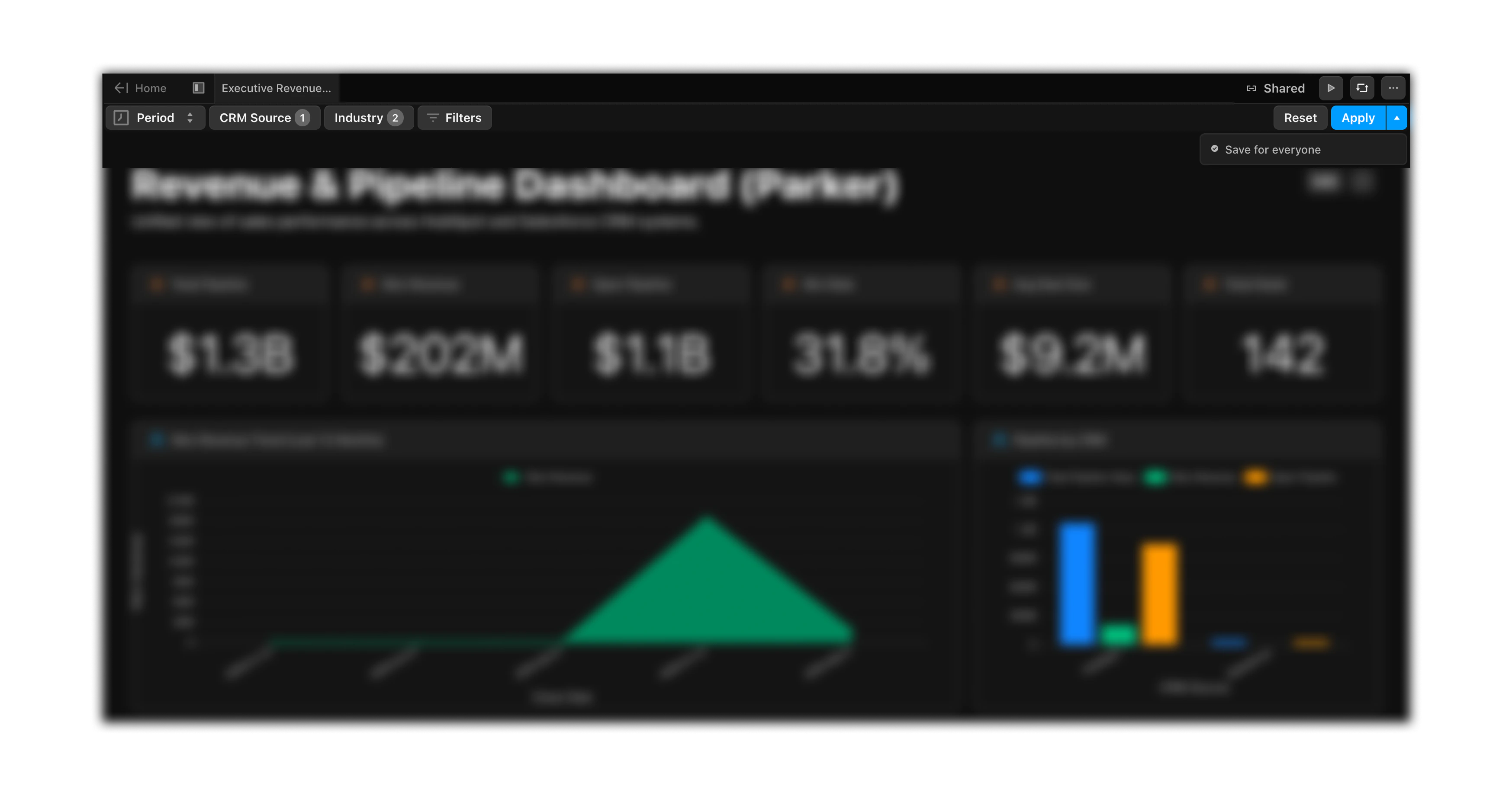 If you reload the page after using **Apply**, the filters revert to the last "saved for everyone" state. To make your selections permanent, click **Save for everyone**.
To reset filters and show all data, click **Reset**.
***
## Filter display modes
Filters have two display modes, controlled by the `display` property:
| Mode | Behavior |
| ----------- | ----------------------------------------------- |
| `prominent` | Shown directly in the toolbar (always visible) |
| `popover` | Hidden behind a filter button/popover (default) |
```yaml theme={null}
filters:
- id: status_filter
display: prominent # Always visible in toolbar
label: Status
target:
dimension: sales.status
operator: equals
values:
- Active
- id: source_filter
display: popover # Hidden behind filter button (default)
label: Source
target:
dimension: sales.source
operator: equals
```
You can also add optional fields like `options` (predefined choices) and `excludeDatasets` (skip specific datasets when applying the filter).
***
## Parameters in SQL datasets
Parameters are a separate mechanism from filters. While filters target Cube dimensions, parameters inject values directly into SQL queries using Jinja-style `{{ "{{" }} parameters.<id> {{ "}}" }}` syntax.
Parameters only work with `engine: sql` datasets. They do not work with Cube or Python datasets. For Cube datasets, use filters (above) instead.
Define parameters at the top level of your Doc YAML, then reference them in SQL:
```yaml theme={null}
parameters:
- id: start_date
type: time
label: "Start Date"
default: "2024-01-01"
datasets:
filtered_data:
engine: sql
sql: SELECT * FROM sales WHERE date >= '{{ "{{" }} parameters.start_date {{ "}}" }}'
```
Parameters appear in the Doc UI as input controls that viewers can adjust.
### Parameter properties
| Property | Required | Description |
| --------- | -------- | ------------------------------------------------------------------------------------ |
| `id` | Yes | Unique identifier, referenced in SQL |
| `type` | Yes | Data type (e.g., `time`). Call `get_doc_schema()` at runtime to see all valid types. |
| `label` | Yes | Display name shown in the UI |
| `default` | No | Default value when the Doc loads |
### Key rules
* Reference parameters with `{{ "{{" }} parameters. {{ "}}" }}`
* Wrap in single quotes for string/date values: `'{{ "{{" }} parameters.start_date {{ "}}" }}'`
* Only works with `engine: sql` datasets
* Parameters are always shown as input controls in the UI (no `display` property like filters)
If you reload the page after using **Apply**, the filters revert to the last "saved for everyone" state. To make your selections permanent, click **Save for everyone**.
To reset filters and show all data, click **Reset**.
***
## Filter display modes
Filters have two display modes, controlled by the `display` property:
| Mode | Behavior |
| ----------- | ----------------------------------------------- |
| `prominent` | Shown directly in the toolbar (always visible) |
| `popover` | Hidden behind a filter button/popover (default) |
```yaml theme={null}
filters:
- id: status_filter
display: prominent # Always visible in toolbar
label: Status
target:
dimension: sales.status
operator: equals
values:
- Active
- id: source_filter
display: popover # Hidden behind filter button (default)
label: Source
target:
dimension: sales.source
operator: equals
```
You can also add optional fields like `options` (predefined choices) and `excludeDatasets` (skip specific datasets when applying the filter).
***
## Parameters in SQL datasets
Parameters are a separate mechanism from filters. While filters target Cube dimensions, parameters inject values directly into SQL queries using Jinja-style `{{ "{{" }} parameters.<id> {{ "}}" }}` syntax.
Parameters only work with `engine: sql` datasets. They do not work with Cube or Python datasets. For Cube datasets, use filters (above) instead.
Define parameters at the top level of your Doc YAML, then reference them in SQL:
```yaml theme={null}
parameters:
- id: start_date
type: time
label: "Start Date"
default: "2024-01-01"
datasets:
filtered_data:
engine: sql
sql: SELECT * FROM sales WHERE date >= '{{ "{{" }} parameters.start_date {{ "}}" }}'
```
Parameters appear in the Doc UI as input controls that viewers can adjust.
### Parameter properties
| Property | Required | Description |
| --------- | -------- | ------------------------------------------------------------------------------------ |
| `id` | Yes | Unique identifier, referenced in SQL |
| `type` | Yes | Data type (e.g., `time`). Call `get_doc_schema()` at runtime to see all valid types. |
| `label` | Yes | Display name shown in the UI |
| `default` | No | Default value when the Doc loads |
### Key rules
* Reference parameters with `{{ "{{" }} parameters. {{ "}}" }}`
* Wrap in single quotes for string/date values: `'{{ "{{" }} parameters.start_date {{ "}}" }}'`
* Only works with `engine: sql` datasets
* Parameters are always shown as input controls in the UI (no `display` property like filters)