> ## Documentation Index
> Fetch the complete documentation index at: https://docs.definite.app/llms.txt
> Use this file to discover all available pages before exploring further.
# Google Sheets
> Connect Google Sheets and push query results to spreadsheets.
## Connect to Google Sheets
In the Definite homepage, go to `Settings` `Integrations` and select Google Sheets.
Create a nickname for your integration and click `Authorize`.
Go through the Google auth login flow and click `Allow`.
Your Google Sheets integration is now set up.
## Push Data to Google Sheets
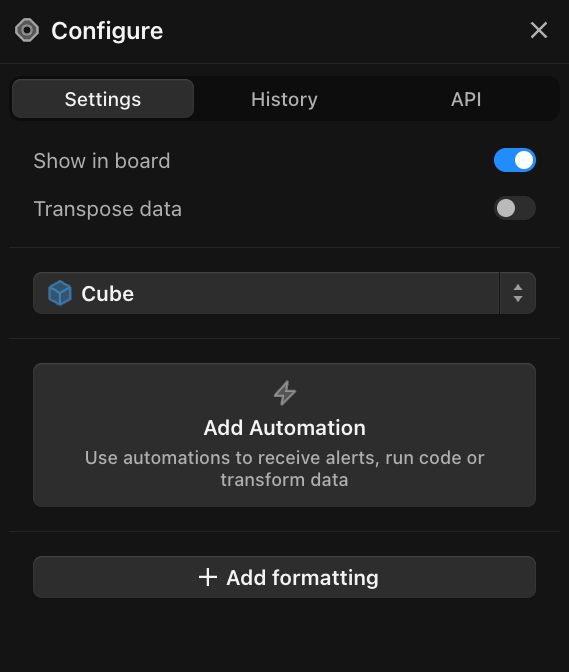
In your block with the data you want to send, click the More menu icon `( ... )` > `Configure` which should bring up a Configure sidebar on the right hand side like this:
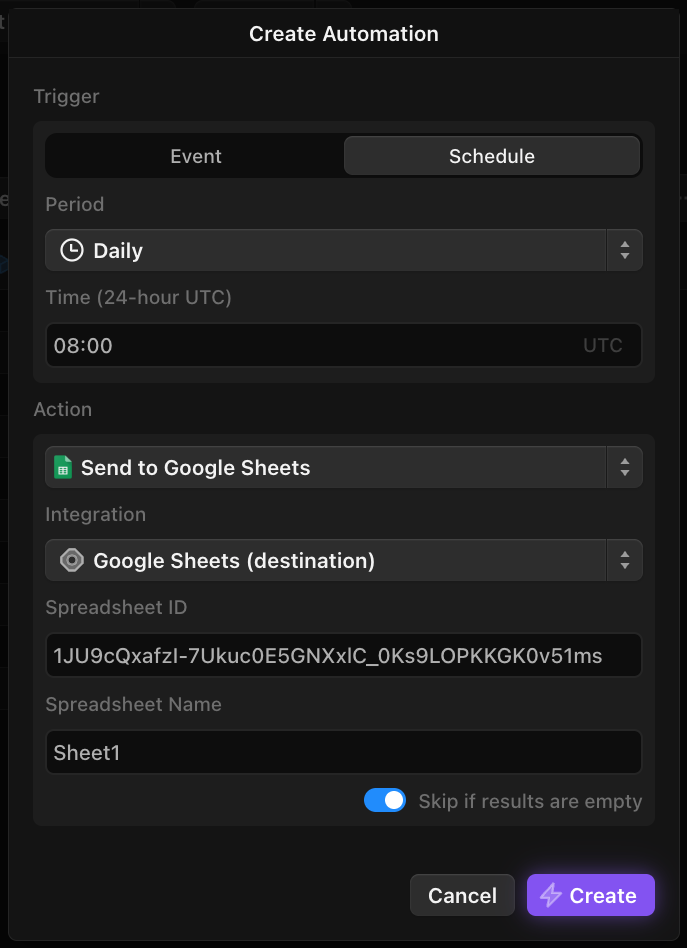
Click `Add Automation`. Fill these in under **Schedule**:
* `Period`: select how frequently you want to push data to the spreadsheet
* `Action`: select Send to Google Sheets
* `Integration`: the nickname for the Google Sheets integration you created above
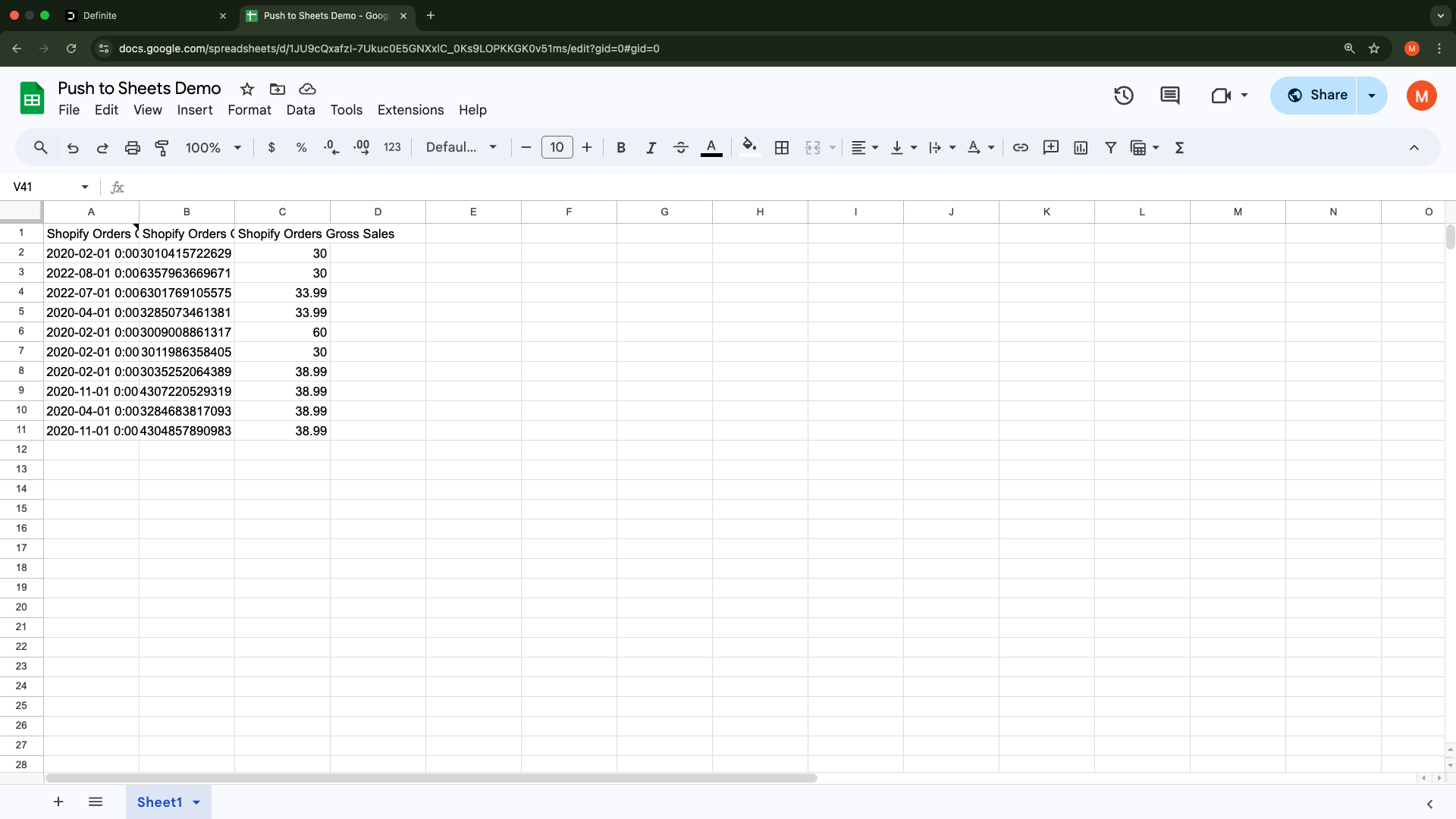
* `Spreadsheet ID`: can be found in this part of the url of the Google Sheet you would like to send data to:
* `Spreadsheet Name`: name of the sheet/tab within your Google Sheets file
Once filled in, it should look something like this:
Hit `Create`. The results of your block should now be in your target Google Sheet.
 * `Spreadsheet Name`: name of the sheet/tab within your Google Sheets file
Once filled in, it should look something like this:
* `Spreadsheet Name`: name of the sheet/tab within your Google Sheets file
Once filled in, it should look something like this: