> ## Documentation Index
> Fetch the complete documentation index at: https://docs.definite.app/llms.txt
> Use this file to discover all available pages before exploring further.
# Slack
> Connect Slack and push query results and charts to channels.
## Connect to Slack
In the Definite homepage, go to `Settings` `Integrations` and select Slack.
Create a nickname for your integration.
Hit `Authorize` and you should be redirected to a page similar to this:
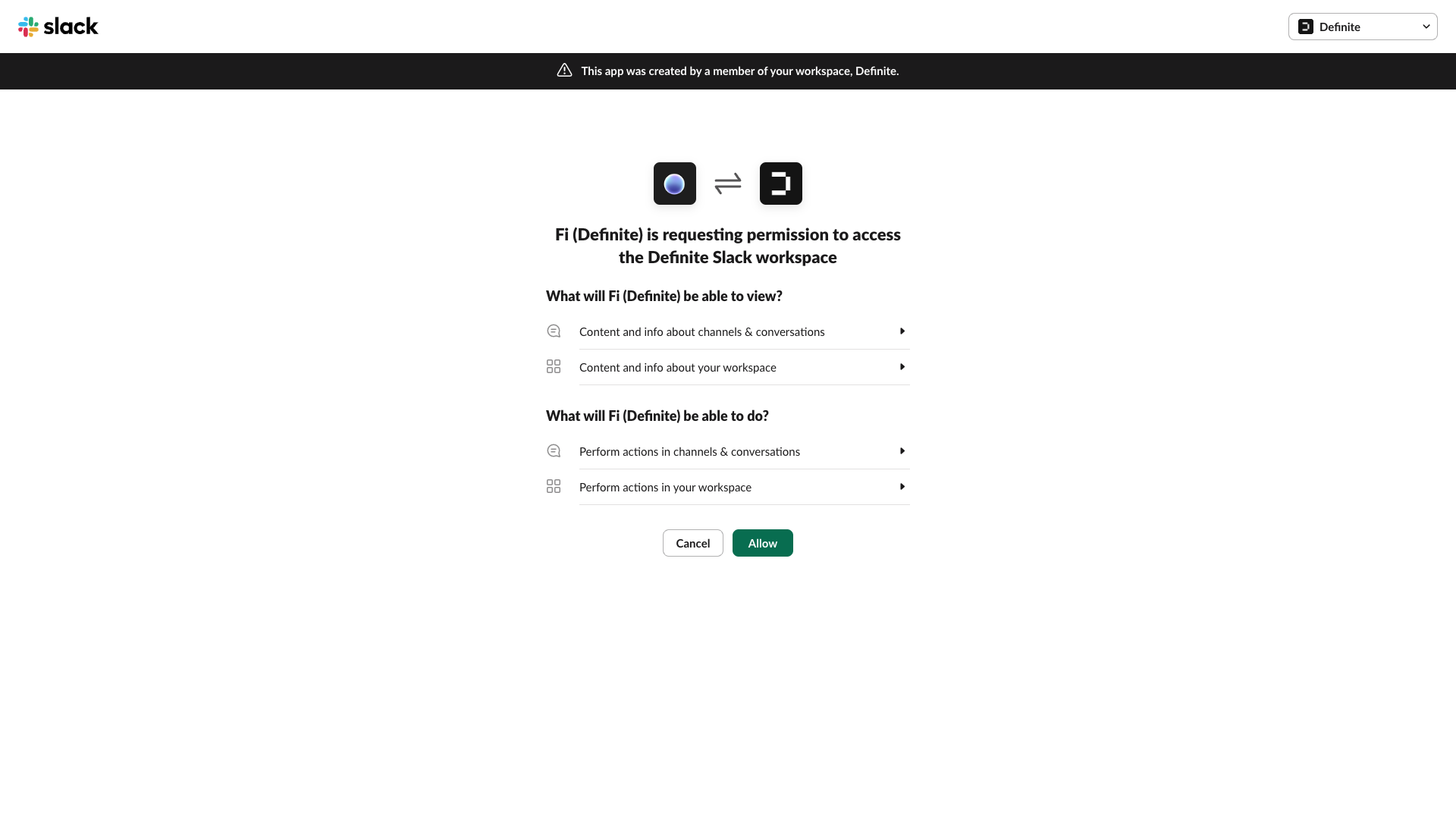 Select your workspace in the upper right hand corner drop down then click `Allow`.
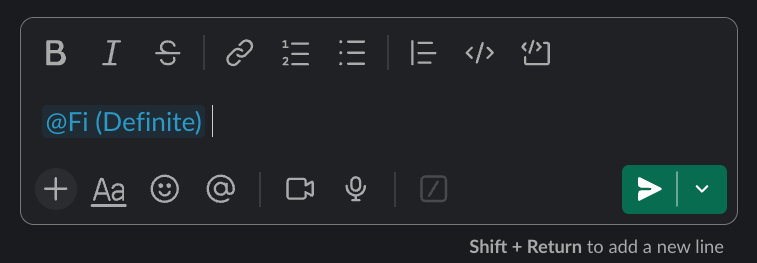
Add @Definite to the Slack channel you'd like to send alerts to.
Select your workspace in the upper right hand corner drop down then click `Allow`.
Add @Definite to the Slack channel you'd like to send alerts to.
 Your Slack integration is now set up.
## Push Data to Slack
In your block with the data you want to send, click the More menu icon `( ... )` > `Configure` which should bring up a Configure sidebar on the right hand side like this:
Your Slack integration is now set up.
## Push Data to Slack
In your block with the data you want to send, click the More menu icon `( ... )` > `Configure` which should bring up a Configure sidebar on the right hand side like this:
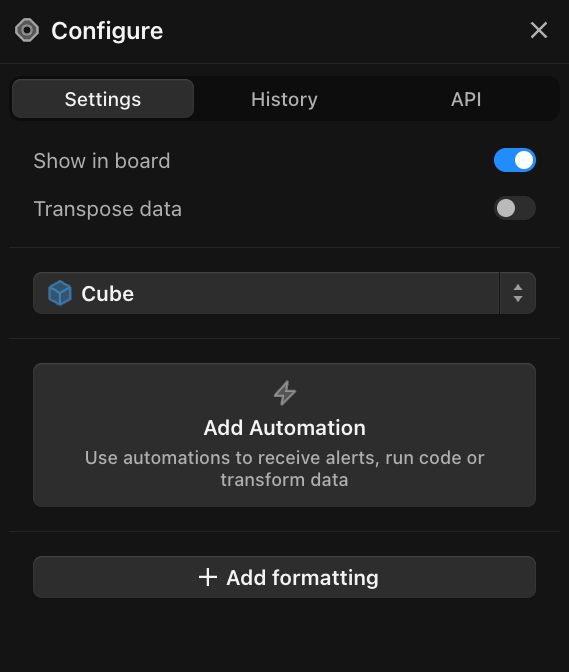 Click `Add Automation`. Fill these in under **Schedule**:
* `Period`: select how frequently you want to push data
* `Action`: select Send to Slack
* `Integration`: the nickname for the Slack integration you created above
* `Channel`: the Slack channel you want the data to be pushed to
* `Format`: If sending output from a query, you can send data in CSV, JSON, or Text Table formats. If sending a chart, the format will be in PNG
If sending the results of a query, click `Create` to run and send your block. If sending a chart, set a schedule for the chart block to run as Definite currently only supports scheduled sends for visualizations.
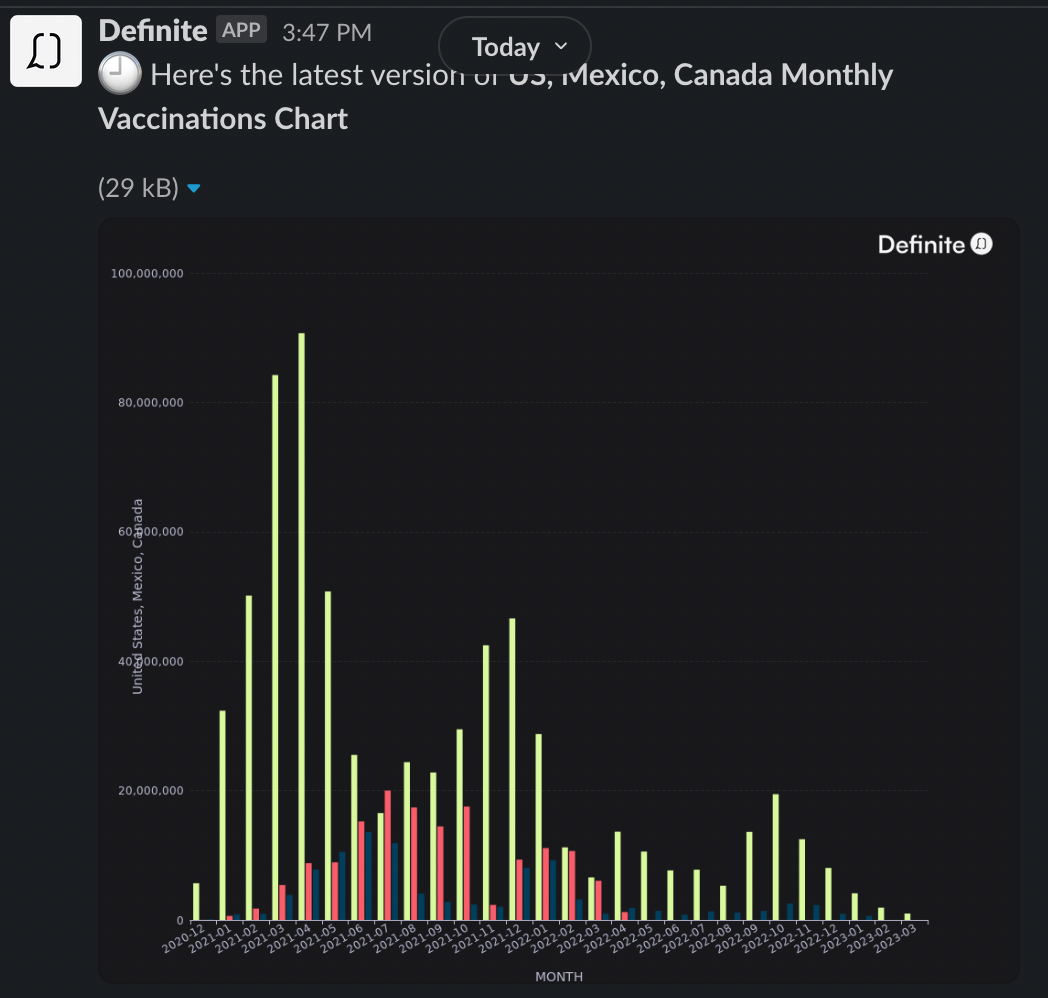
An example of a Definite chart sent to Slack
Click `Add Automation`. Fill these in under **Schedule**:
* `Period`: select how frequently you want to push data
* `Action`: select Send to Slack
* `Integration`: the nickname for the Slack integration you created above
* `Channel`: the Slack channel you want the data to be pushed to
* `Format`: If sending output from a query, you can send data in CSV, JSON, or Text Table formats. If sending a chart, the format will be in PNG
If sending the results of a query, click `Create` to run and send your block. If sending a chart, set a schedule for the chart block to run as Definite currently only supports scheduled sends for visualizations.
An example of a Definite chart sent to Slack
 Fi uses large language models (LLMs) to generate responses and insights. AI-generated content may occasionally contain inaccuracies or incomplete information and should be reviewed before making business decisions.
\
For more information about how Definite collects, uses, and protects data, please review our [Privacy Policy](https://definite.app/privacy).
Fi uses large language models (LLMs) to generate responses and insights. AI-generated content may occasionally contain inaccuracies or incomplete information and should be reviewed before making business decisions.
\
For more information about how Definite collects, uses, and protects data, please review our [Privacy Policy](https://definite.app/privacy).