> ## Documentation Index
> Fetch the complete documentation index at: https://docs.definite.app/llms.txt
> Use this file to discover all available pages before exploring further.
# Zendesk Extractor
> Pulling data from Zendesk
## Prerequisite: Getting your Zendesk API Token
To connect Definite to Zendesk, you need the following:
1. Email used for Zendesk account
2. Zendesk Subdomain
3. Zendesk API Token
To get your Zendesk account’s Subdomain:
Log in to your Zendesk account.
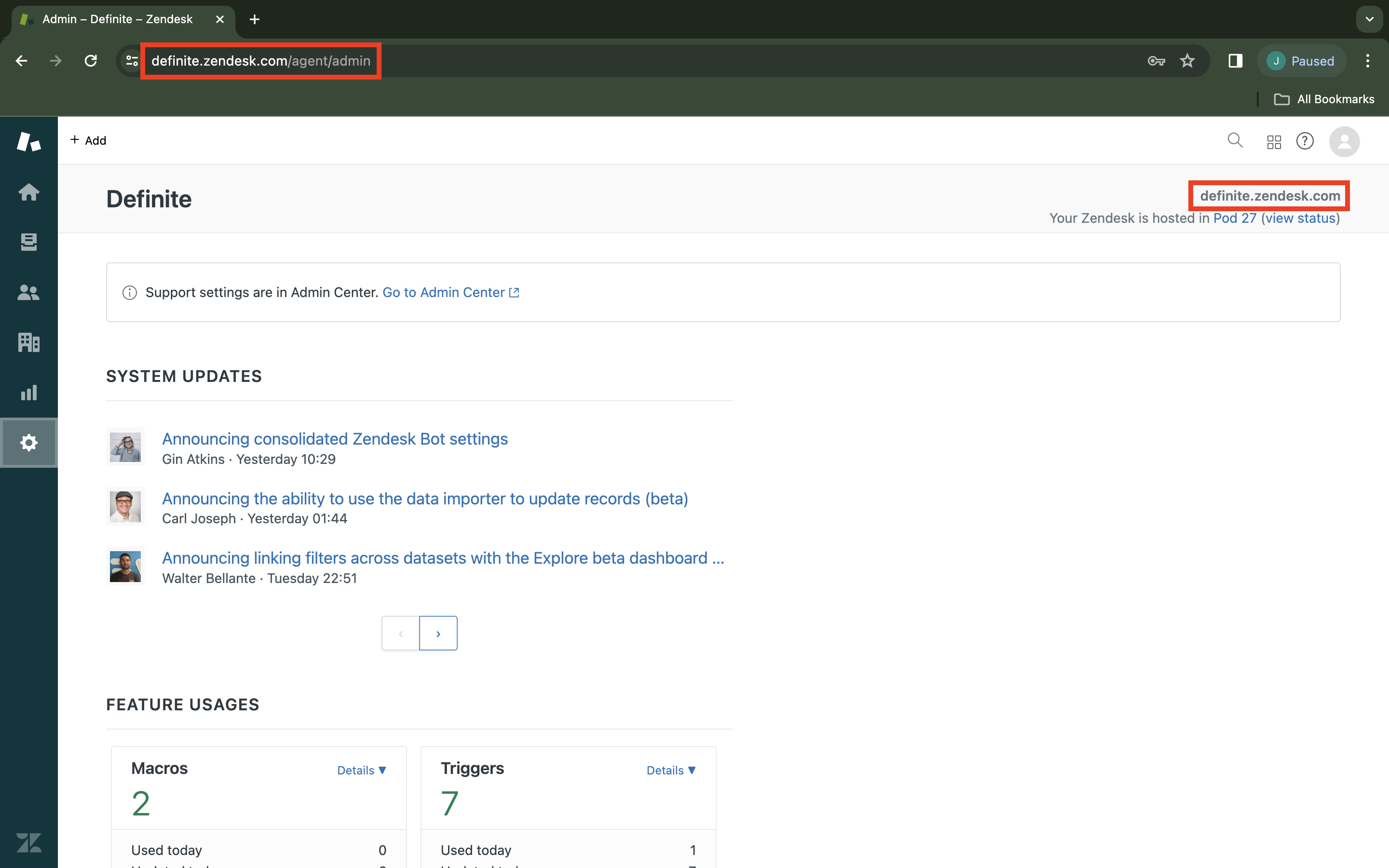
Go to Support Admin home page by clicking the Gear icon on the left sidebar. Your subdomain is located in the upper right corner of your screen `yoursubdomain.zendesk.com`
A faster way to get your subdomain (if the host-mapping feature is not enabled) is to check your URL. Your subdomain is in the account’s URL `'https://yoursubdomain.zendesk.com/agent/admin'`
 To get your API token:
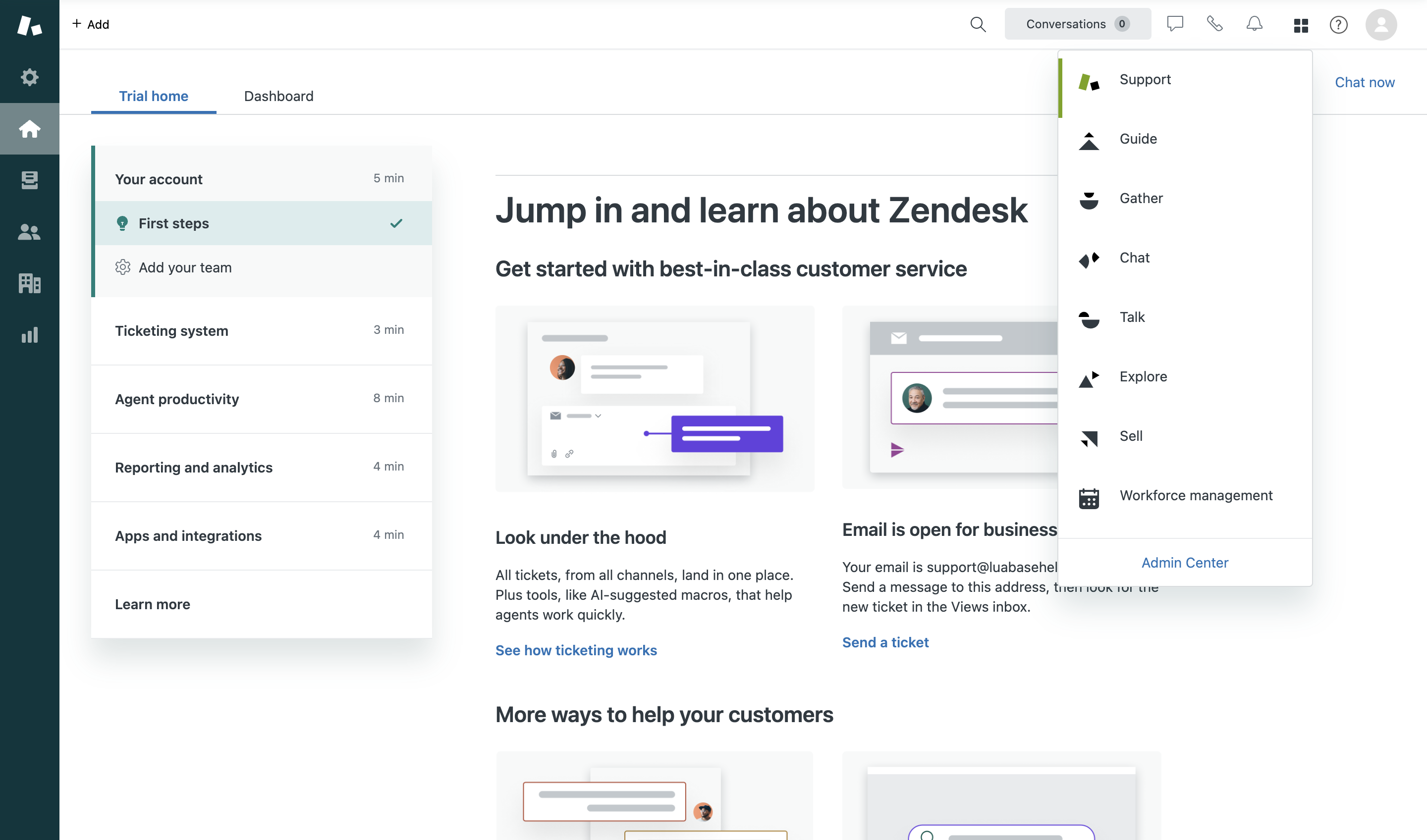
Click the four tile icon located on the upper right corner of your screen, then click `Admin Center`. You will be redirected to a different page.
To get your API token:
Click the four tile icon located on the upper right corner of your screen, then click `Admin Center`. You will be redirected to a different page.
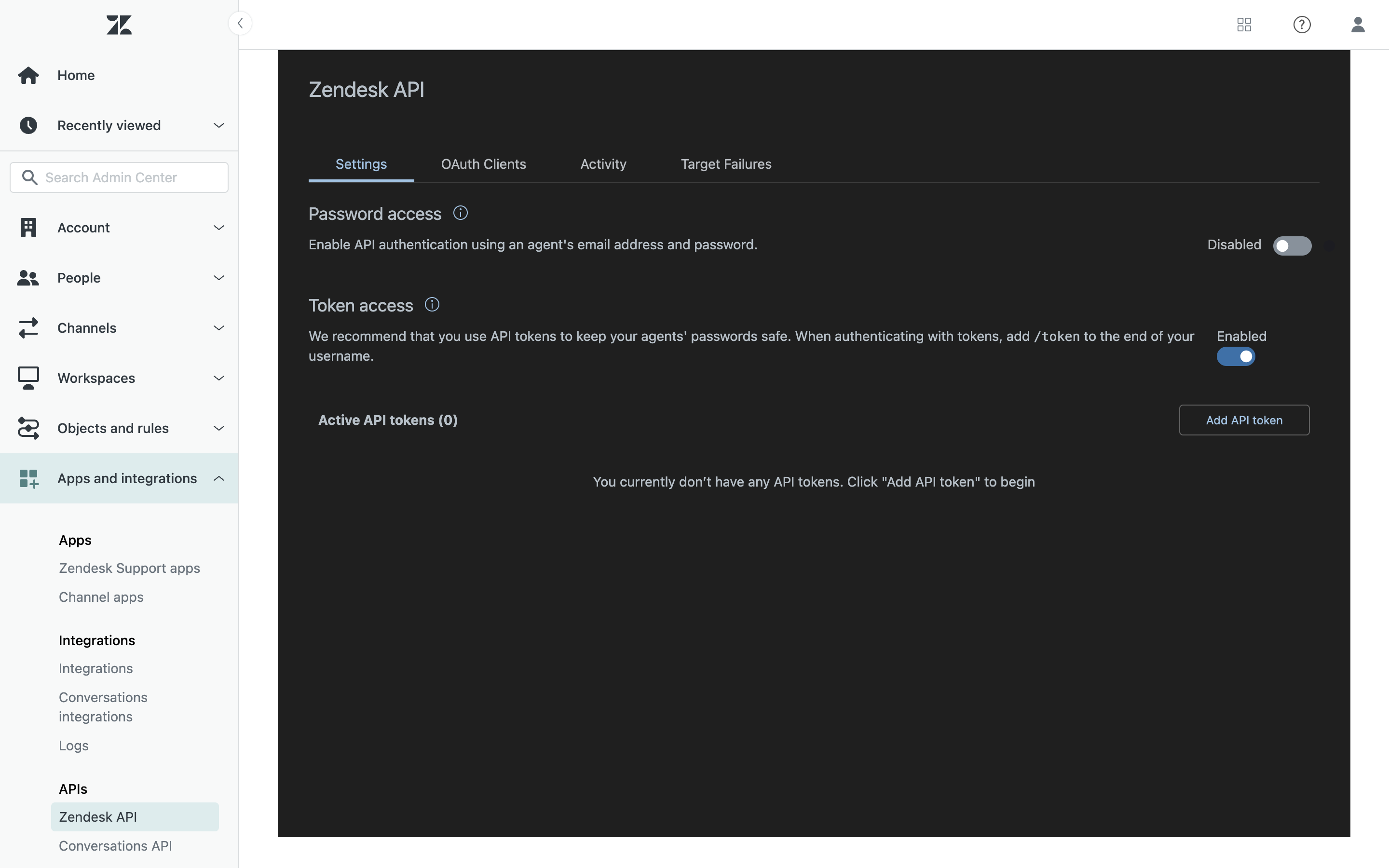
 Under **Apps and integrations** > **APIs** > **Zendesk API**, toggle the slider button beside **Token access** to enable API token access.
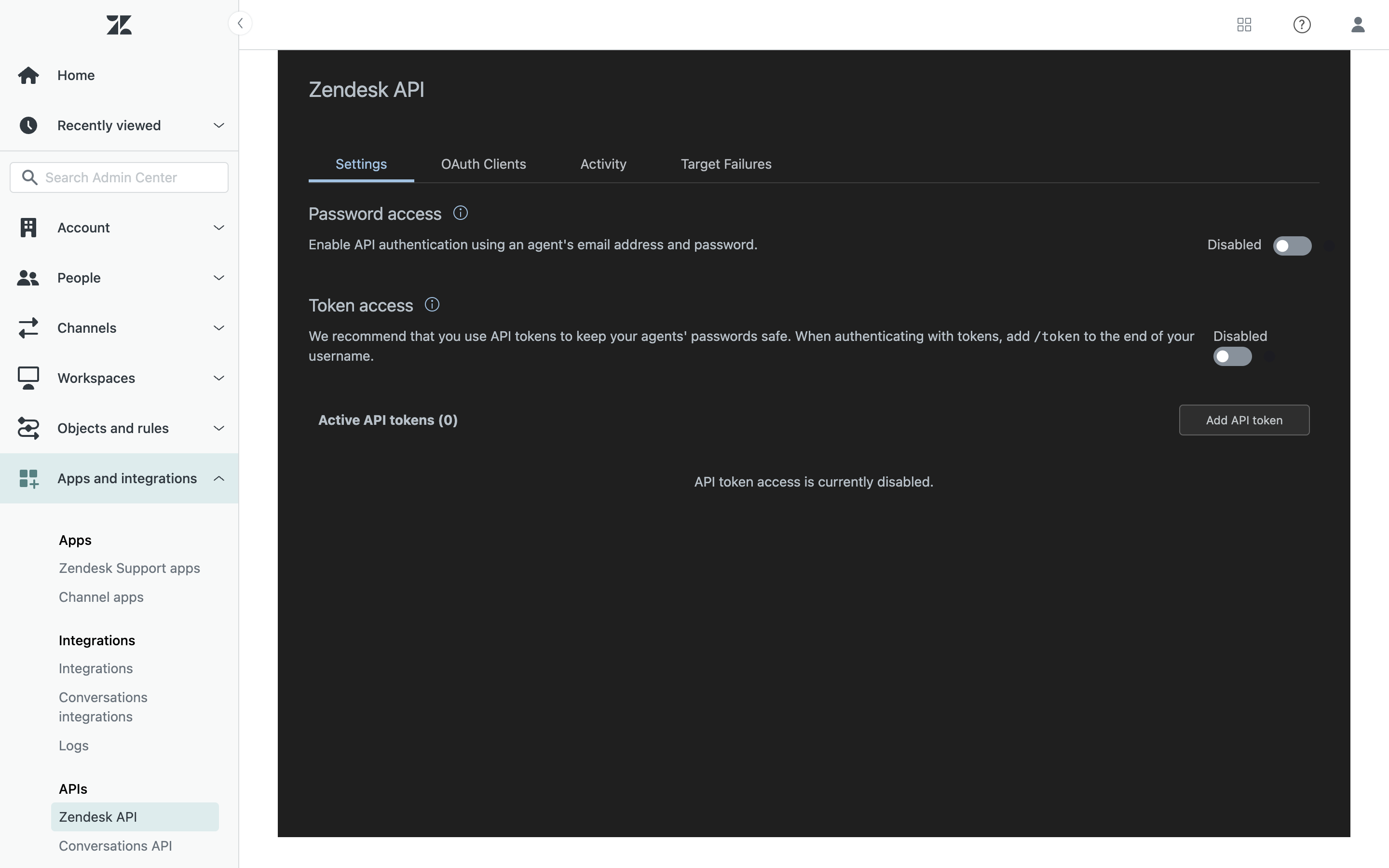 Click `Add API token`.
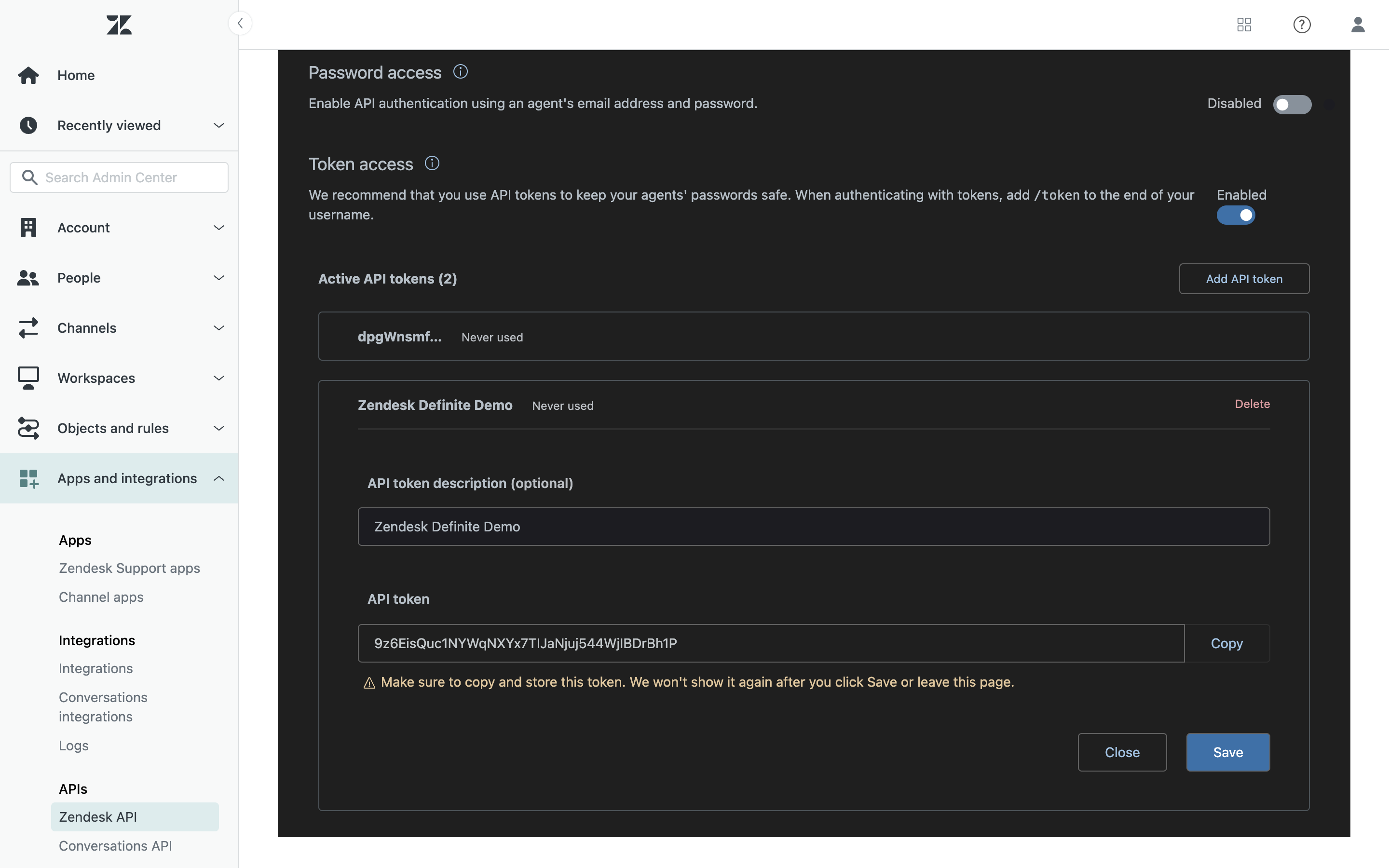
 Enter an API token description. Copy the token and paste it somewhere secure. When you close this window, the full token will never be displayed again.
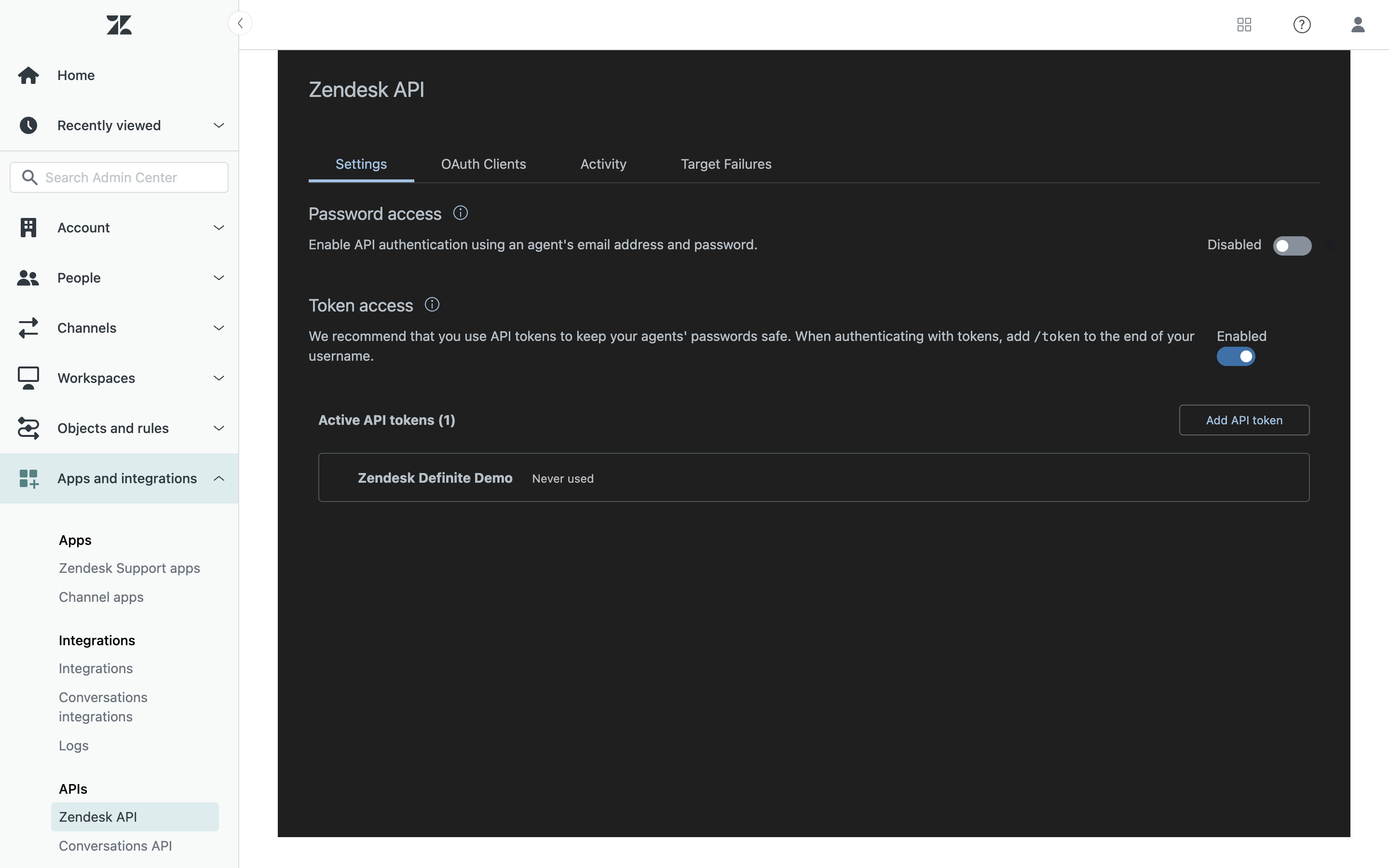
 Click `Save` to return to the Zendesk API page.
 ## Definite instructions
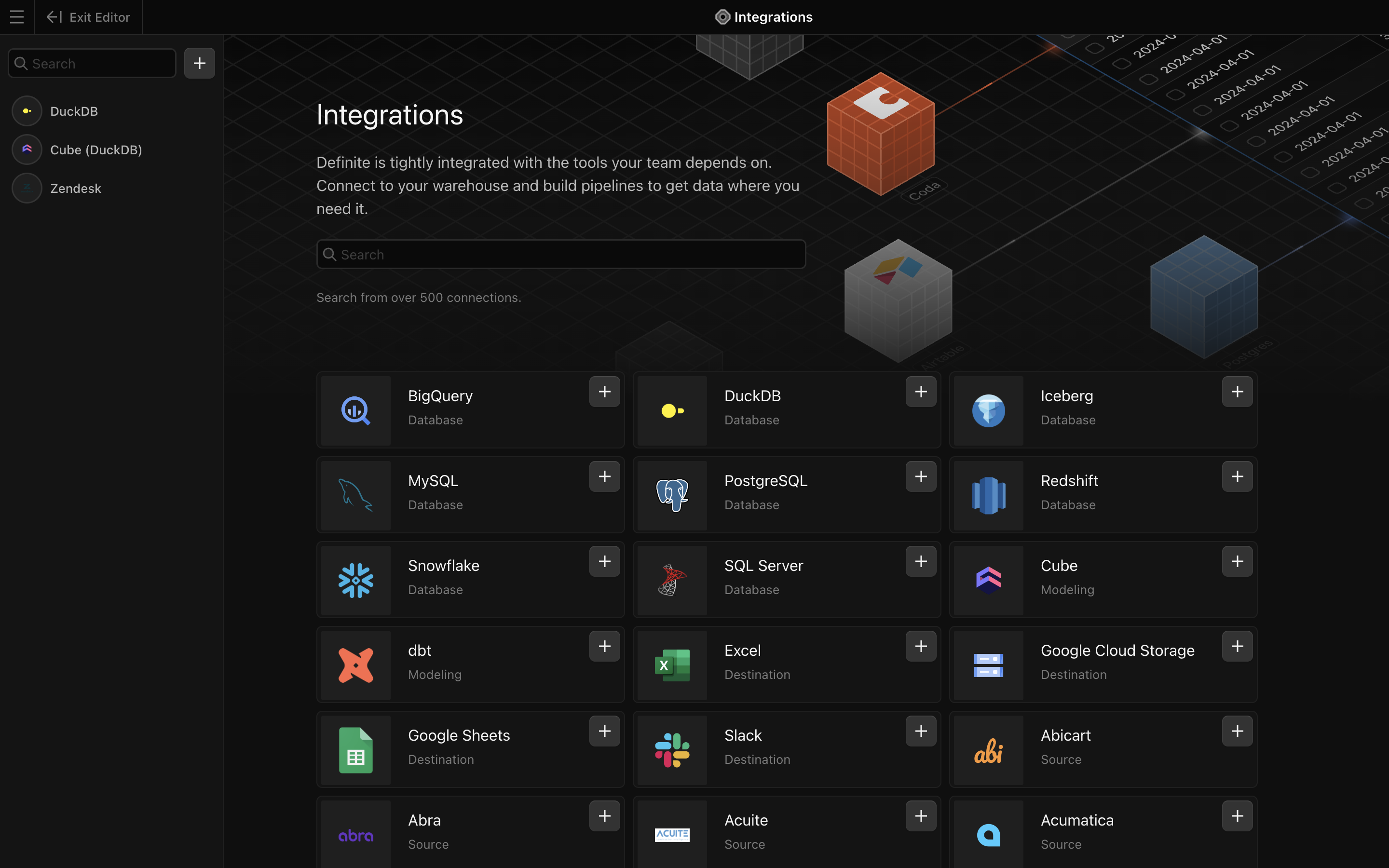
Go to [this link](https://ui.definite.app/settings/integrations) to add an integration. Search for our Zendesk extractor and click it to get to the creation form.
## Definite instructions
Go to [this link](https://ui.definite.app/settings/integrations) to add an integration. Search for our Zendesk extractor and click it to get to the creation form.
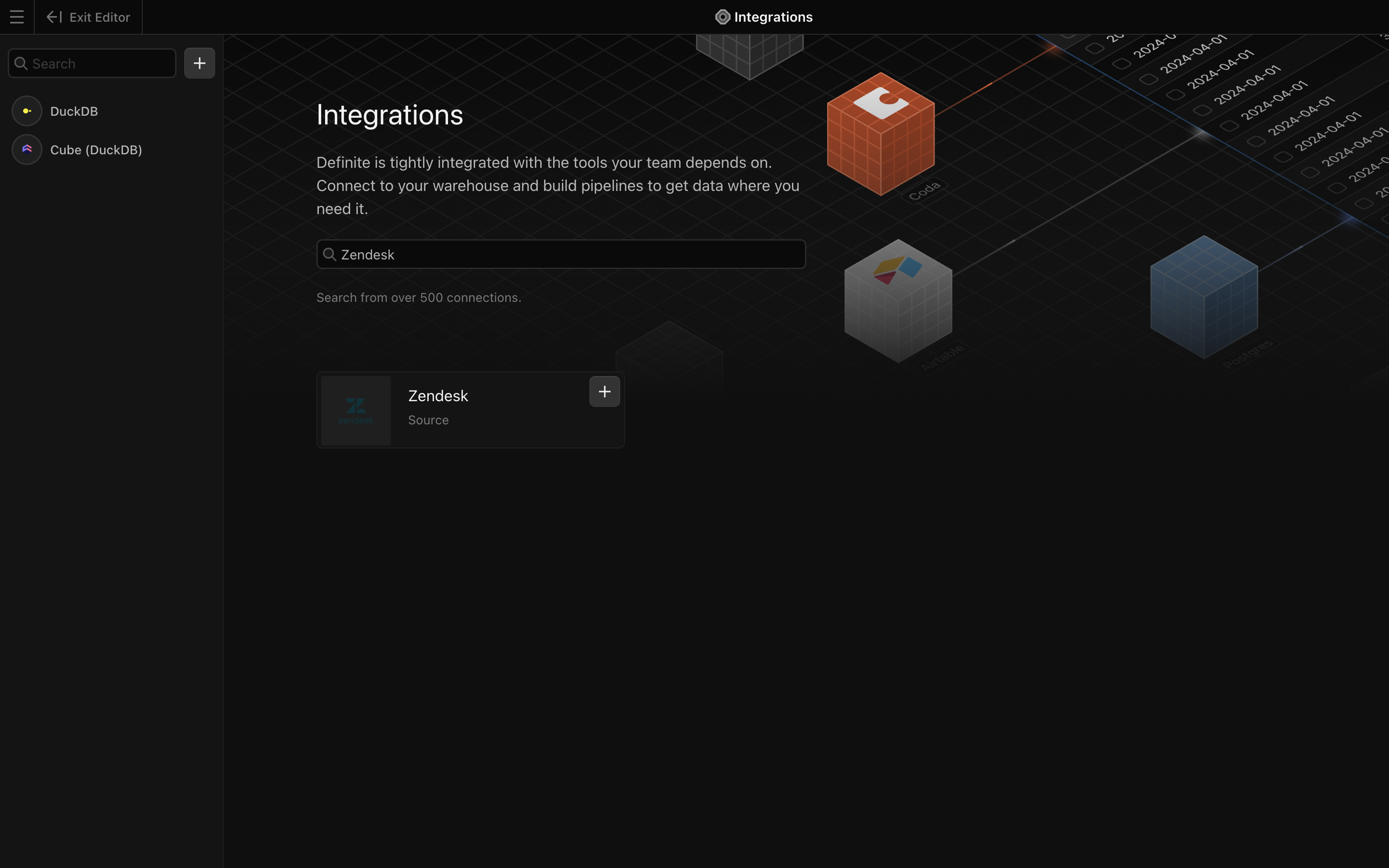 Add a name for your integration, email address that you use for the account, and **Subdomain** and **API Token** from the sections above.
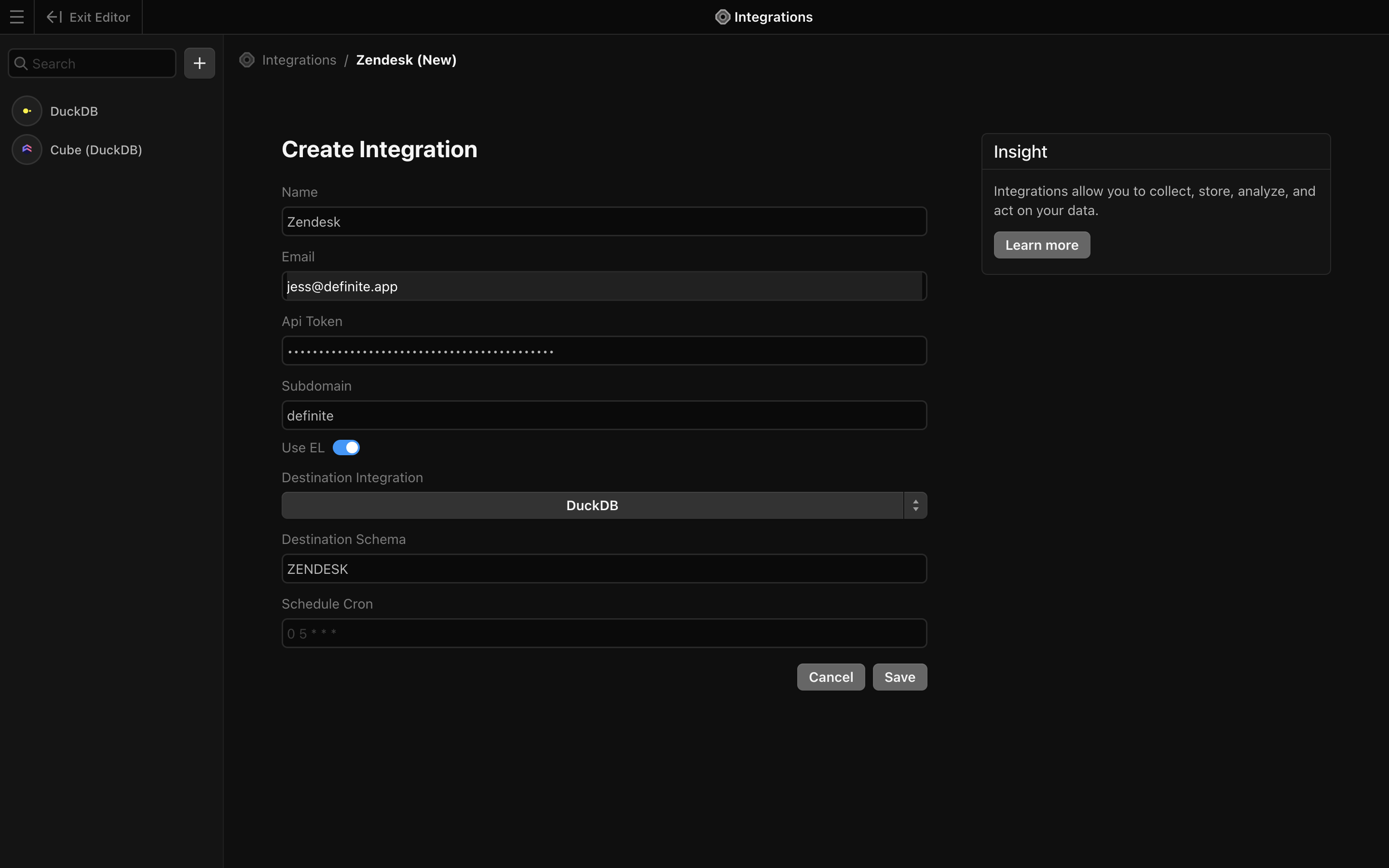 Finish by clicking `Save`. Definite should automatically take you back to the integrations page where you can see your new Zendesk integration.