
The fastest way to connect HubSpot is with Fi. Say “Create a HubSpot integration”. See the video tutorial below.

Prerequisite: Getting your HubSpot Access Token

In order to allow Definite to retrieve data from your HubSpot account, you’ll need to get access through a HubSpot Private App. We recommend making a new Private App for Definite to ensure the correct access.

1
Log into your HubSpot account that you want to automatically pull data from.
2
Click the gear icon to get to your settings.
3
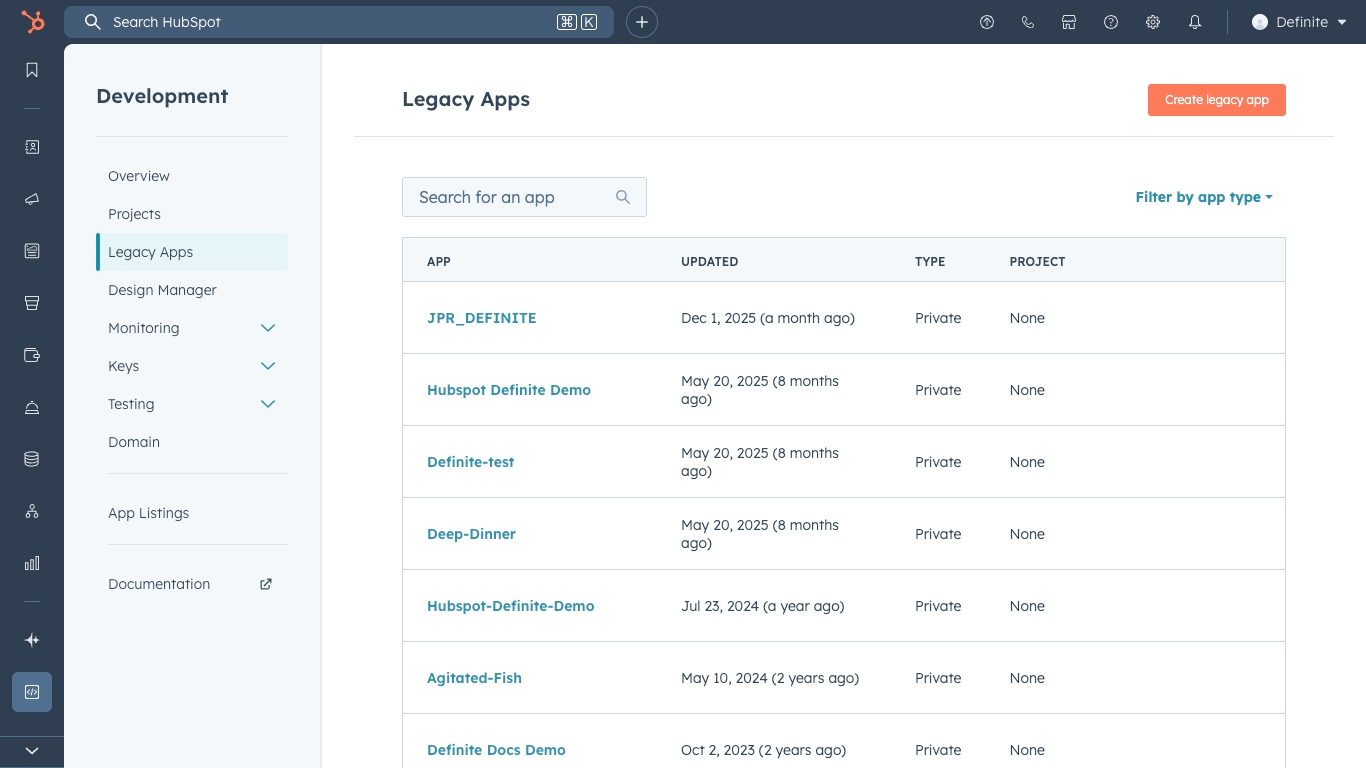
Under Account Management > Integrations > Legacy Apps, click the Create legacy app button.
4
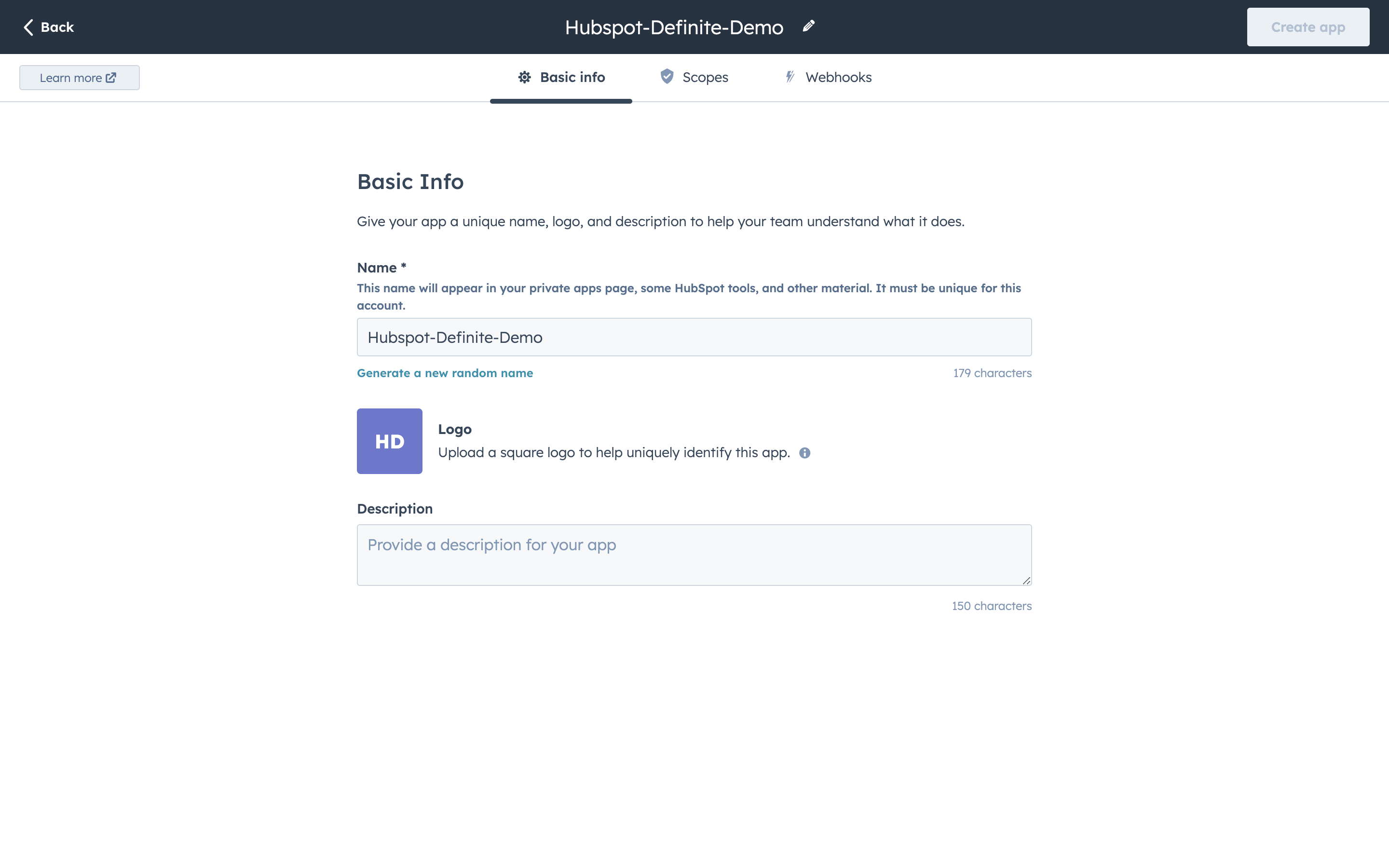
Name your app. Then click the Scopes tab.
5
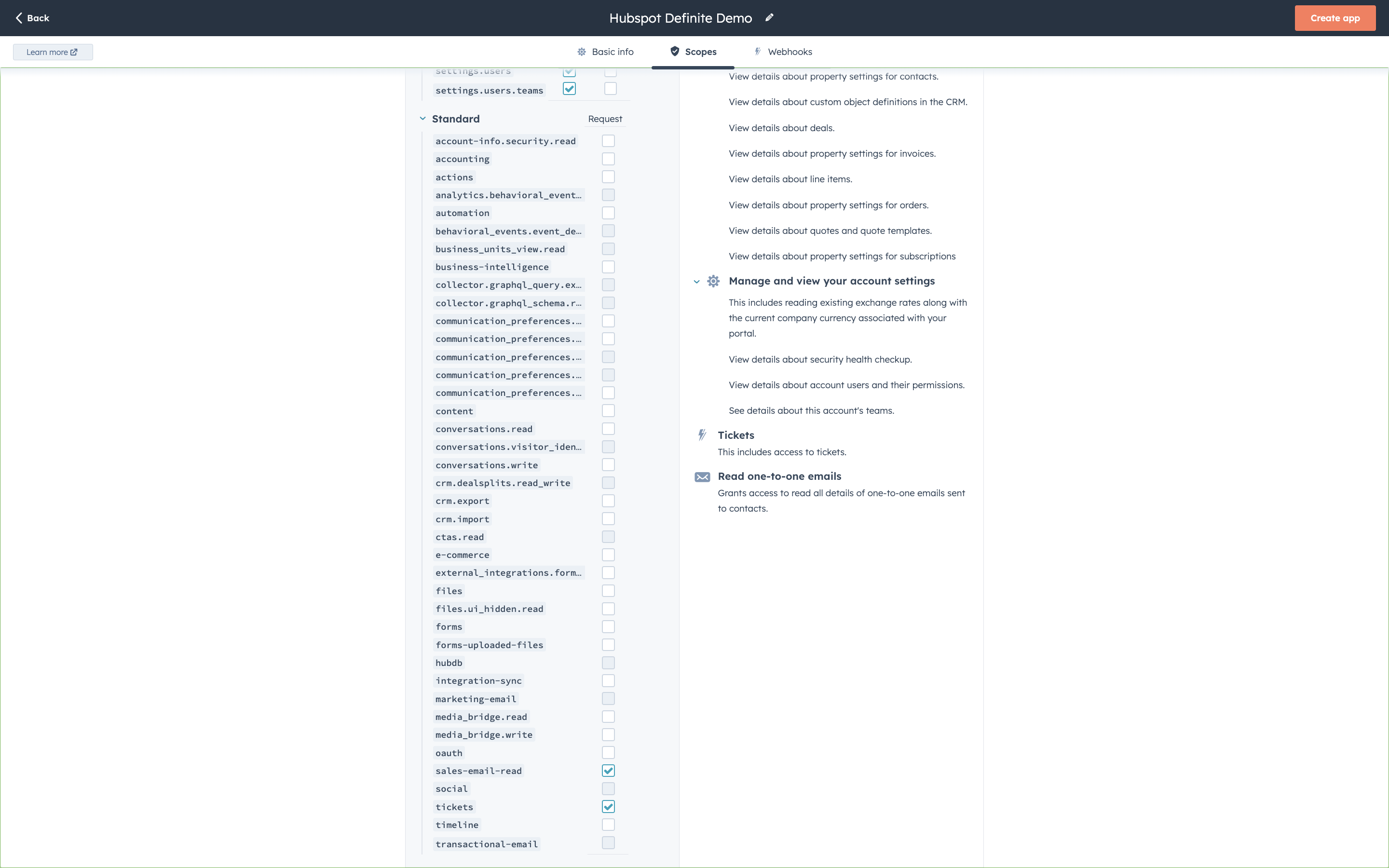
Select Read for ALL scopes under CMS, CRM, and Settings.
6
Select Request for the following scopes under Others:
sales-email-read
tickets
7
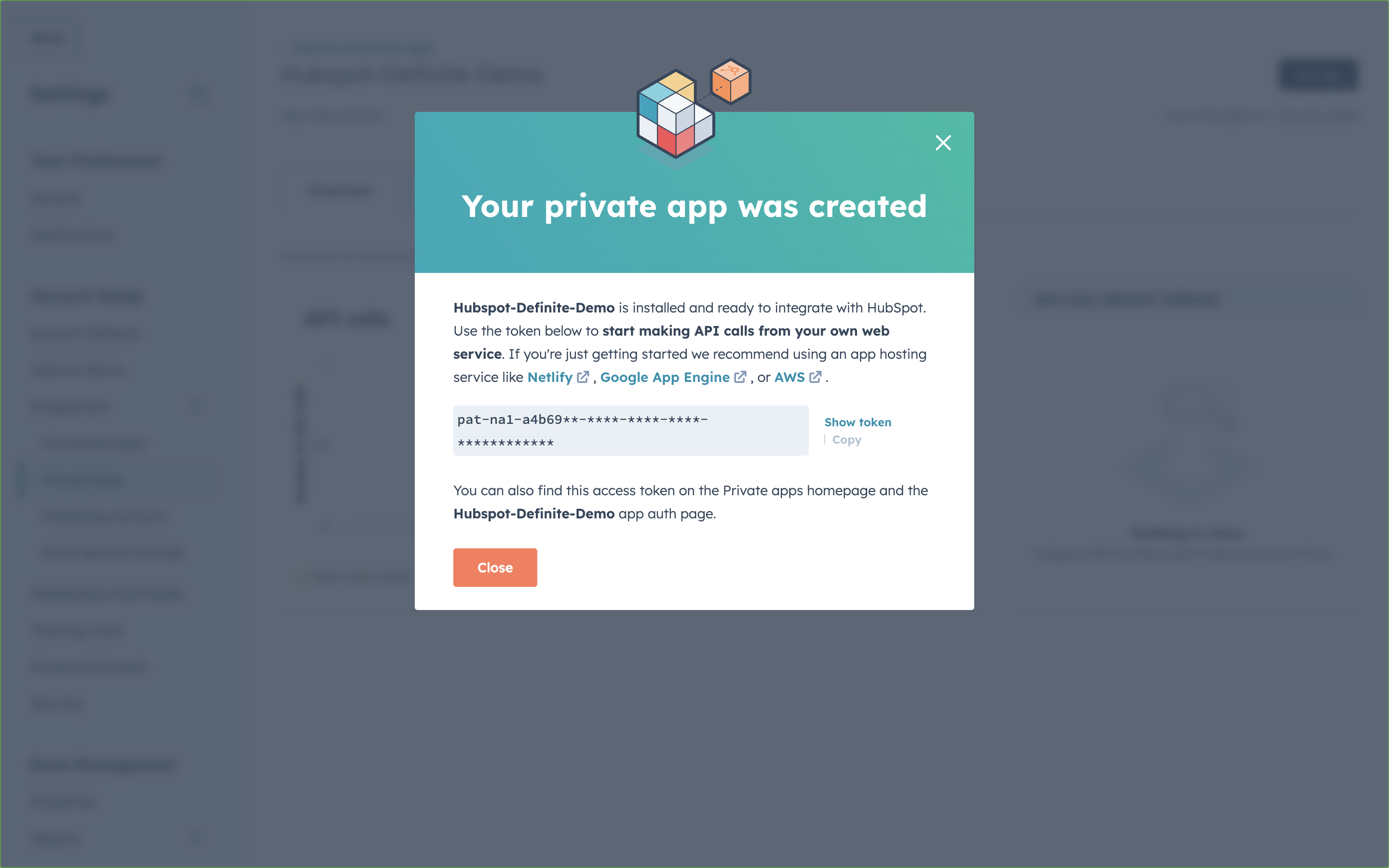
After you confirm your creation, you should see this page where you can show and copy the Access Token value.

Quick setup with Fi

Once you have your Access Token, you can set up HubSpot in under a minute using Fi. Just ask Fi to connect your HubSpot account and it will guide you through the process.

Manual setup

For manual setup, follow the steps below.
1
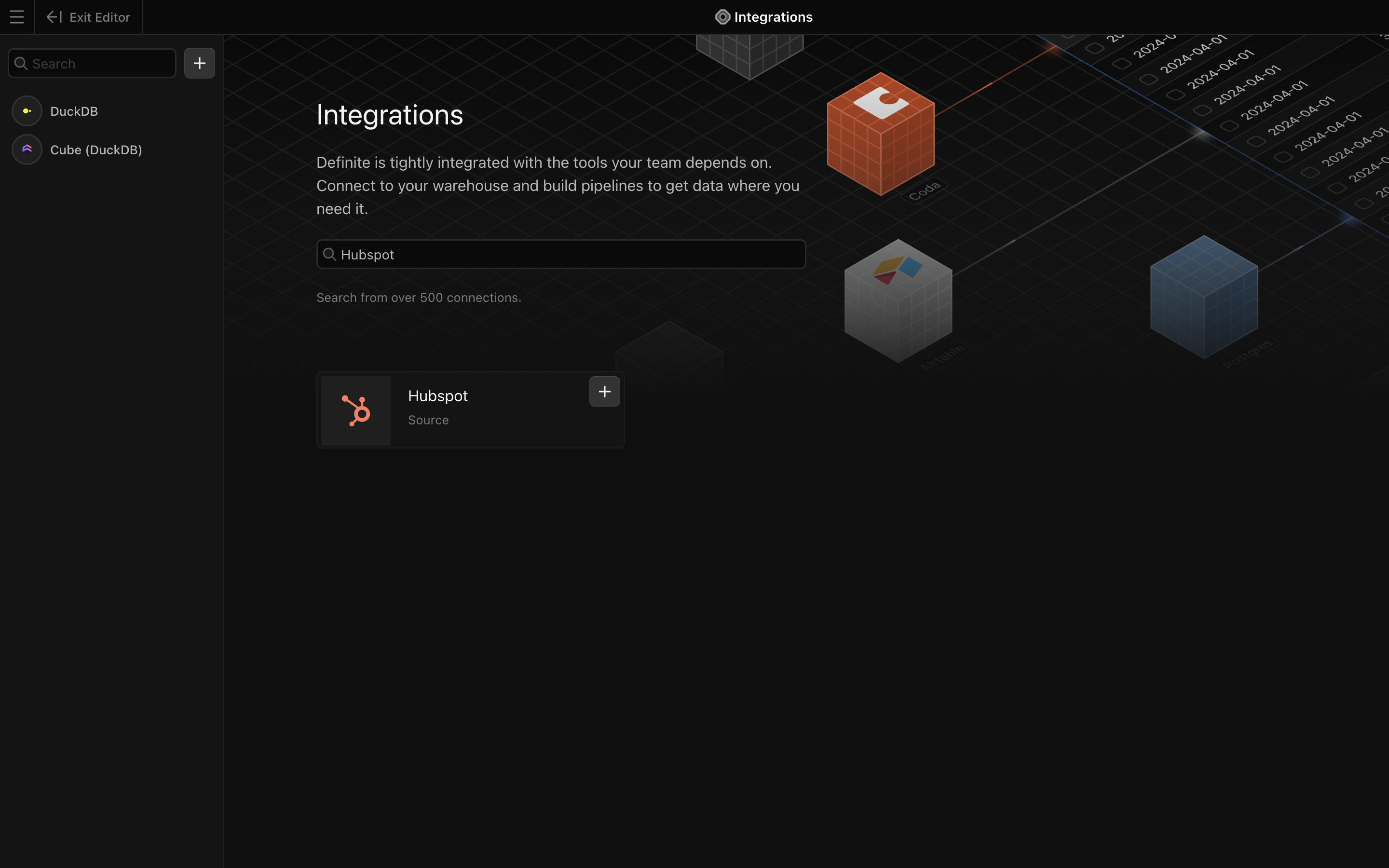
Go to this link to add an integration. Search for the Hubspot extractor.
2
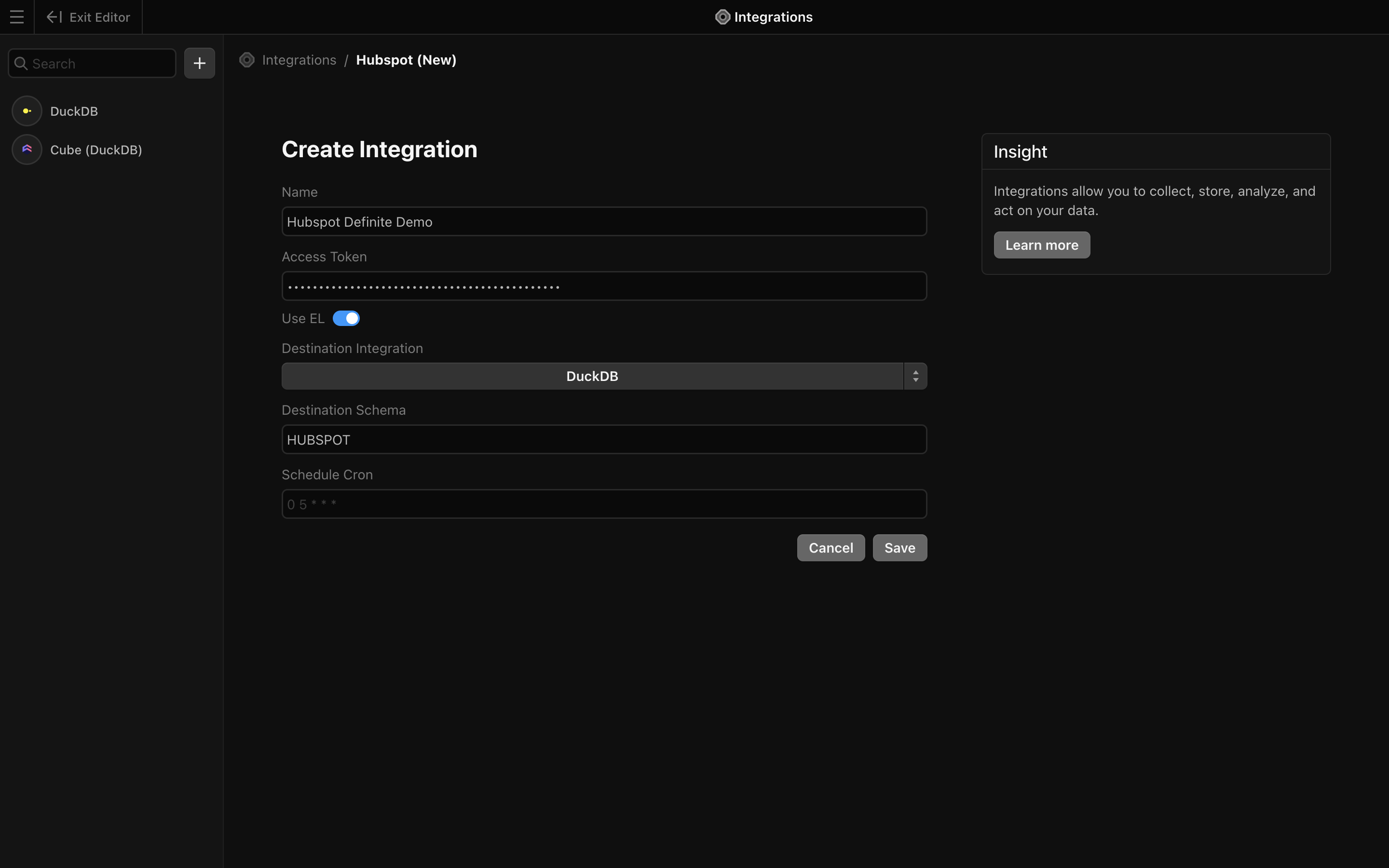
Add a name for your integration and the Access Token from the section above.
3
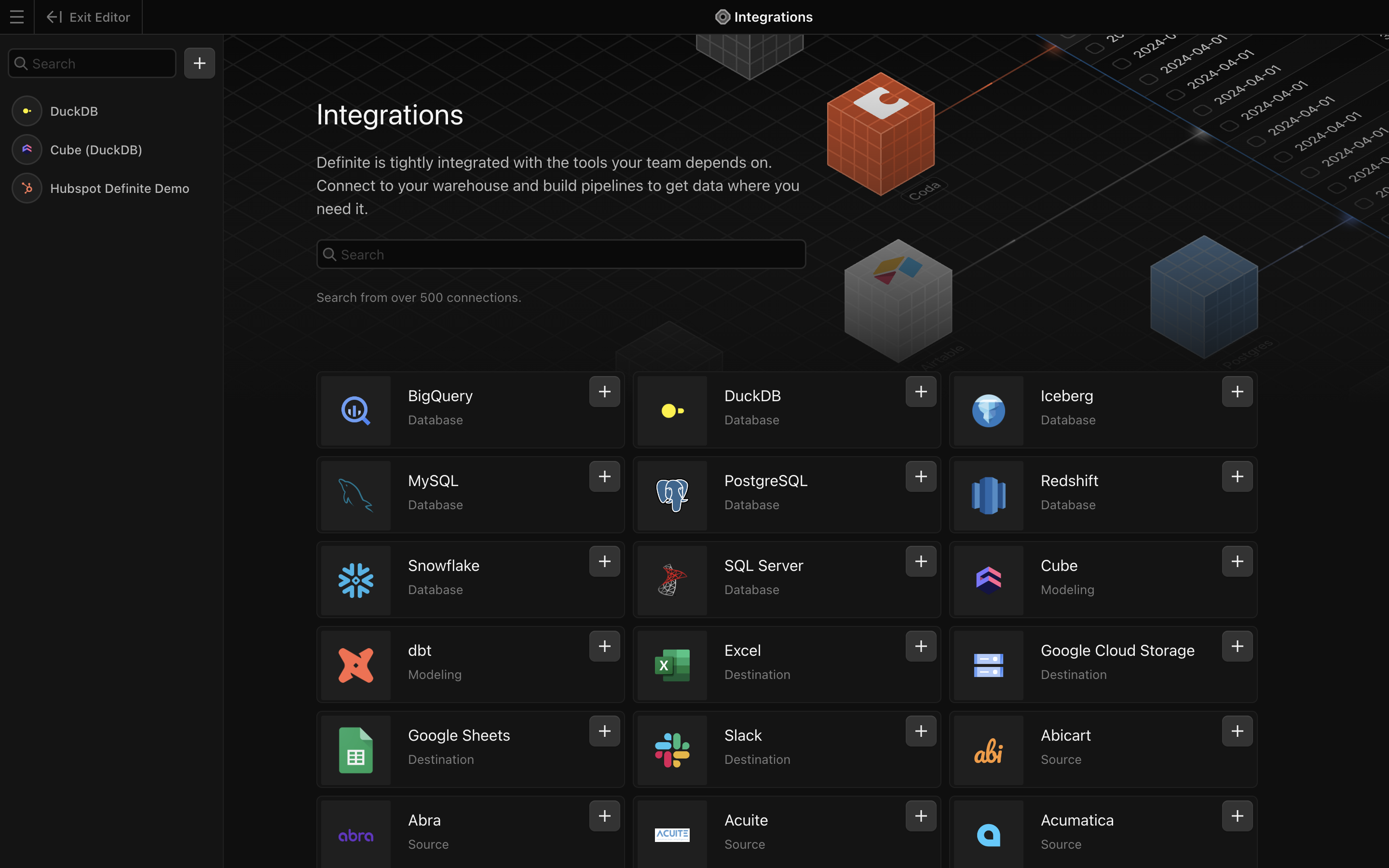
Finish by clicking Save. Definite should automatically take you back to the integrations page where you can see your new HubSpot integration.