Users need the Admin role to create and edit tiles. Analysts have read-only access.
This page covers the configuration options and examples for each tile type. For an overview of how tiles work, see Introduction to Tiles.

KPI tiles

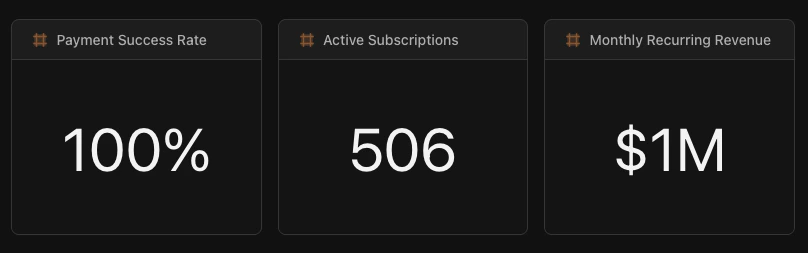
KPI tiles display single metrics prominently. They’re perfect for key performance indicators that need to stand out at a glance.
KPI tiles

When should I use a KPI tile?

Use KPIs when you have a single number that stakeholders check regularly: total revenue, conversion rate, active users, or any metric that answers “how are we doing?”

Configuration options

OptionDescription
SourceThe dataset containing your metric
FieldThe column to display
FormatHow to display the value: currency, percent, or number
ColorCustomize the display color (hex code)
CompareOptional comparison to previous period

Example

# KPI showing total revenue collected in last 90 days
engine: "sql"
sql: |
  SELECT SUM(amount) as total_collected
  FROM LAKE.STRIPE.charges
  WHERE status = 'succeeded'
    AND to_timestamp(created) >= CURRENT_DATE - INTERVAL '90 days'

viz:
  type: "kpi"
  series:
    - field: "total_collected"
      format: "currency"         # Display as $X,XXX
  colors:
    color: "#10b981"             # Green

Chart tiles

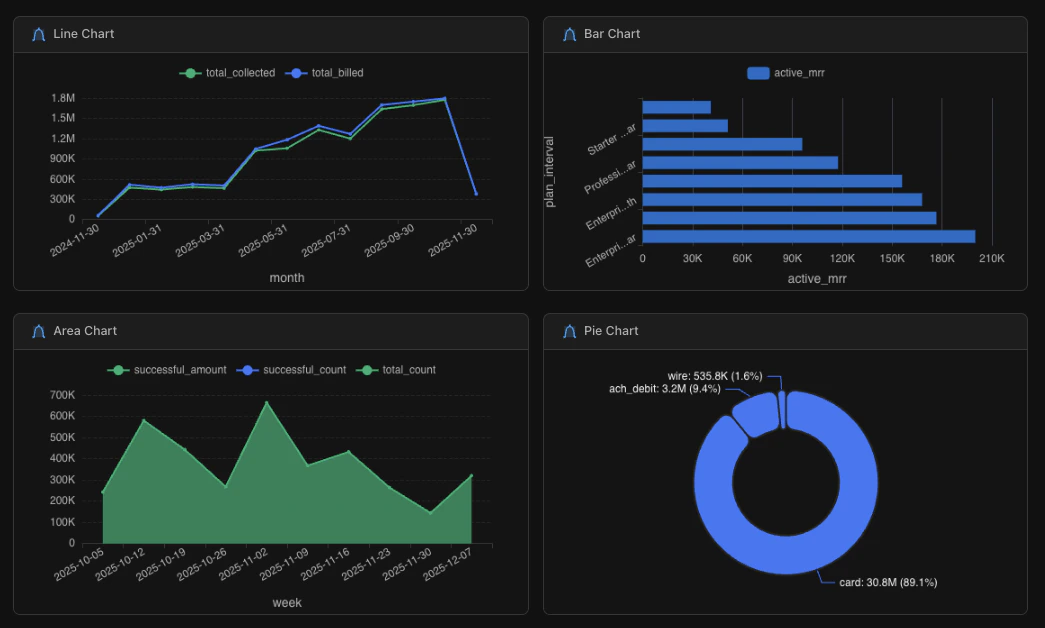
Chart tiles visualize data graphically. You can choose from line, area, bar, or pie charts depending on what you’re trying to show.

Chart types

TypeBest forExample use case
LineTrends over timeMonthly revenue, daily active users
AreaTrends with volume emphasisCumulative signups, stacked metrics
BarComparing categoriesRevenue by region, sales by product
PieProportions of a wholeRevenue by payment method, users by plan
KPI tiles

When should I use a line chart vs a bar chart?

Use a line chart when showing how something changes over time: daily, weekly, or monthly trends. The x-axis is typically a date. Use a bar chart when comparing discrete categories: regions, products, or segments. The x-axis is typically a category name.
If you’re unsure, ask yourself: “Is time the main dimension?” If yes, use a line chart. If you’re comparing groups, use a bar chart.

Configuration options

OptionDescription
SourceThe dataset to visualize
TypeChart type: line, area, bar, or pie
SeriesFields to plot and their axis assignments
ColorsPalette, scheme, or individual hex colors
LegendShow/hide and position (top, bottom, left, right)
Orientationvertical or horizontal (bar charts only)
StackedStack multiple series (bar and area charts)

Example

engine: "sql"
sql: |
  SELECT
    DATE_TRUNC('month', created_at) as month,
    SUM(amount) as revenue
  FROM orders
  WHERE created_at >= CURRENT_DATE - INTERVAL '12 months'
  GROUP BY 1
  ORDER BY 1

viz:
  type: "line"                   # Change to "bar", "area", or "pie"
  series:
    - field: "revenue"
      label: "Revenue"
      format: "currency"
  colors:
    palette: "default"           # Or use color: "#3b82f6" for a specific hex
  legend:
    position: "top"              # top, bottom, left, right
  orientation: "vertical"        # Bar charts only: vertical or horizontal

Type-specific options

Chart typeKey options
LineMultiple series for comparison, works best with time on x-axis
AreaSame as line, add stacked: true to stack multiple series
BarSet orientation: "horizontal" for horizontal bars, stacked: true for stacked bars
PieUse label in series to specify the category field for slices

Table tiles

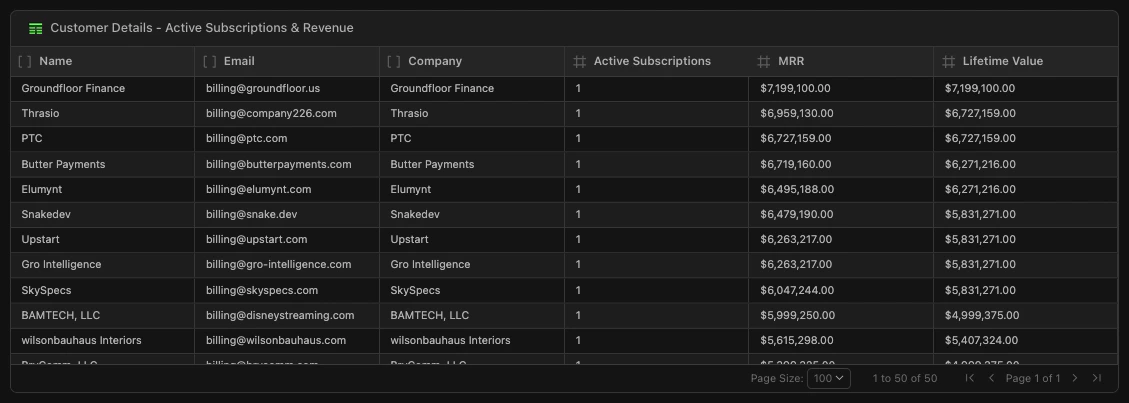
Table tiles display query results in rows and columns. They’re useful when users need to explore detailed data, drill into records, or export information.
KPI tiles

When should I use a table tile?

Use tables when:
  • Users need to see individual records (e.g., list of customers, recent orders)
  • The data has many columns that don’t visualize well as a chart
  • Users want to filter, sort, or search the data
  • You’re providing a drill-down from a summary metric

Configuration options

OptionDescription
SourceThe dataset to display
ColumnsWhich columns to show and their order
FormattingNumber formats, date formats, text wrapping
FilteringEnable user-side filtering
SortingDefault sort column and direction
PaginationNumber of rows per page

Example

# Top 20 customers by lifetime value
engine: "sql"
sql: |
  SELECT
    customer_name,
    customer_email,
    COUNT(order_id) as total_orders,
    SUM(order_total) as lifetime_value,
    MAX(order_date) as last_order
  FROM orders
  JOIN customers ON orders.customer_id = customers.id
  GROUP BY 1, 2
  ORDER BY lifetime_value DESC
  LIMIT 20

viz:
  type: "table"
  columns:
    - field: "customer_name"
      label: "Customer"
    - field: "total_orders"
      label: "Orders"
    - field: "lifetime_value"
      label: "LTV"
      format: "currency"
    - field: "last_order"
      label: "Last Order"
      format: "date"
  sorting:
    field: "lifetime_value"
    direction: "desc"

Markdown tiles

Markdown tiles add formatted text to your Doc. Use them for section headers, descriptions, methodology notes, or any context that helps viewers understand your dashboard.

When should I use a markdown tile?

Use markdown to:
  • Add section headers that organize your dashboard
  • Explain methodology or data sources
  • Provide context for metrics (“Revenue excludes refunds”)
  • Add links to related resources

Supported formatting

SyntaxResult
# HeadingLarge heading
## HeadingMedium heading
### HeadingSmall heading
**bold**bold
*italic*italic
- itemBullet list
1. itemNumbered list
[text](url)Hyperlink

Example

type: "markdown"
content: |
  # Executive Revenue Dashboard

  Real-time revenue metrics combining Stripe payment data and HubSpot sales pipeline.

  **Data sources**: Stripe charges, HubSpot deals
  **Period**: Last 90 days, updated hourly

  ---

  For questions about this dashboard, contact the Revenue Ops team.

Next steps